





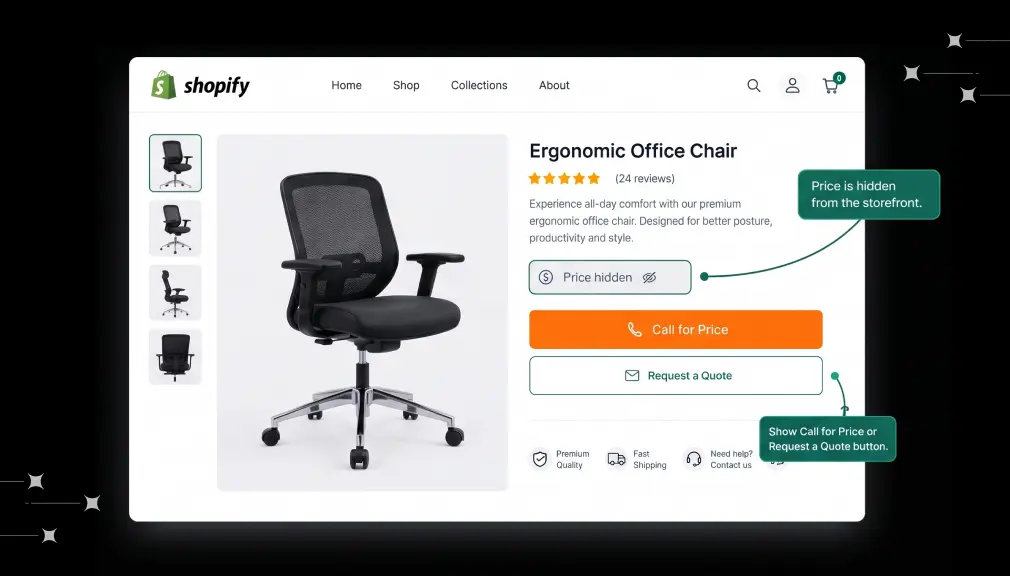
Shopify has no built-in setting to hide prices on a regular store. To hide them, you either edit your theme code or install an app that hides the price and the Add to Cart button, then shows a “Call for Price” or “Request a Quote” button in their place.
This guide covers all three: hiding prices, showing Call for Price, and adding a Request a Quote button. It also explains how to hide prices only for guests or only on selected products.
Quick answer: how do I hide prices on Shopify?
- Install a hide-price app such as AI Request a Quote or Hide Price (free plan available).
- Choose which products to hide prices on: all products, or by collection, product tag or customer group.
- Choose who sees hidden prices: all visitors, guests only, or customers without a specific tag.
- Choose what replaces the price: a Call for Price button, a Request a Quote button, or a “Login to see price” message.
- Save and check a product page in a private browser window.
No coding is needed, and you can undo it anytime by turning the rule off.
Why Shopify stores hide prices
Stores hide prices when a single fixed price doesn’t fit every buyer or order. The most common reasons:
- B2B and wholesale. Trade buyers get different prices from retail shoppers, often based on volume or account.
- Custom or made-to-order products. Furniture, signage, printing, uniforms and machinery depend on size, material and quantity, so the price is only known after a conversation.
- Bulk orders. Large orders get tiered or negotiated pricing that a single price on the page can’t show.
- Price changes often. Metals, electronics and imported goods change price too often to keep the store up to date.
- Brand pricing rules (MAP). Some brands don’t allow resellers to show prices below a minimum advertised price, so the price is shown on request.
- Luxury and high-value items. Asking for the price starts a sales conversation instead of a quick price comparison.
Hiding the price on its own loses sales, because the shopper has nowhere to go. That’s why stores replace the price with a clear next step: a Call for Price button or a Request a Quote form.
3 ways to hide prices on Shopify
For most stores, an app is the fastest and safest way: no code, works on any theme, and it can show Call for Price or a quote button in the price’s place.
| Method | Skill needed | Setup time | Hide for guests only | Hide on selected products | Call for Price or quote button | Cost |
|---|---|---|---|---|---|---|
| Hide price app | None | 5–10 minutes | Yes | Yes (collection, tag, customer group) | Yes, built in | Free plan, paid from $7.99/month |
| Edit theme code (Liquid) | Developer | 1–3 hours | Possible with extra code | Possible with extra code | Must be built by hand | Free, plus developer time |
| Shopify B2B (company catalogs) | Medium | 1–2 hours | Shows B2B prices to logged-in companies | Through catalogs | No | Included in Shopify plans |
Editing theme code means removing or wrapping the price and Add to Cart code in your theme’s product and collection templates. It works, but it breaks when you change or update your theme, and it doesn’t give buyers a way to ask for the price.
Shopify B2B lets you give wholesale companies their own prices through catalogs. Since April 2026 it’s included in the Basic, Grow and Advanced plans, with up to three custom catalogs; Plus gets unlimited catalogs (Shopify). It’s built for showing different prices to approved buyers, not for hiding prices or collecting quote requests.
A hide price app handles both: it hides the price and Add to Cart where you choose, and gives every shopper a way to ask for the price.
How to hide prices on Shopify with an app (step by step)
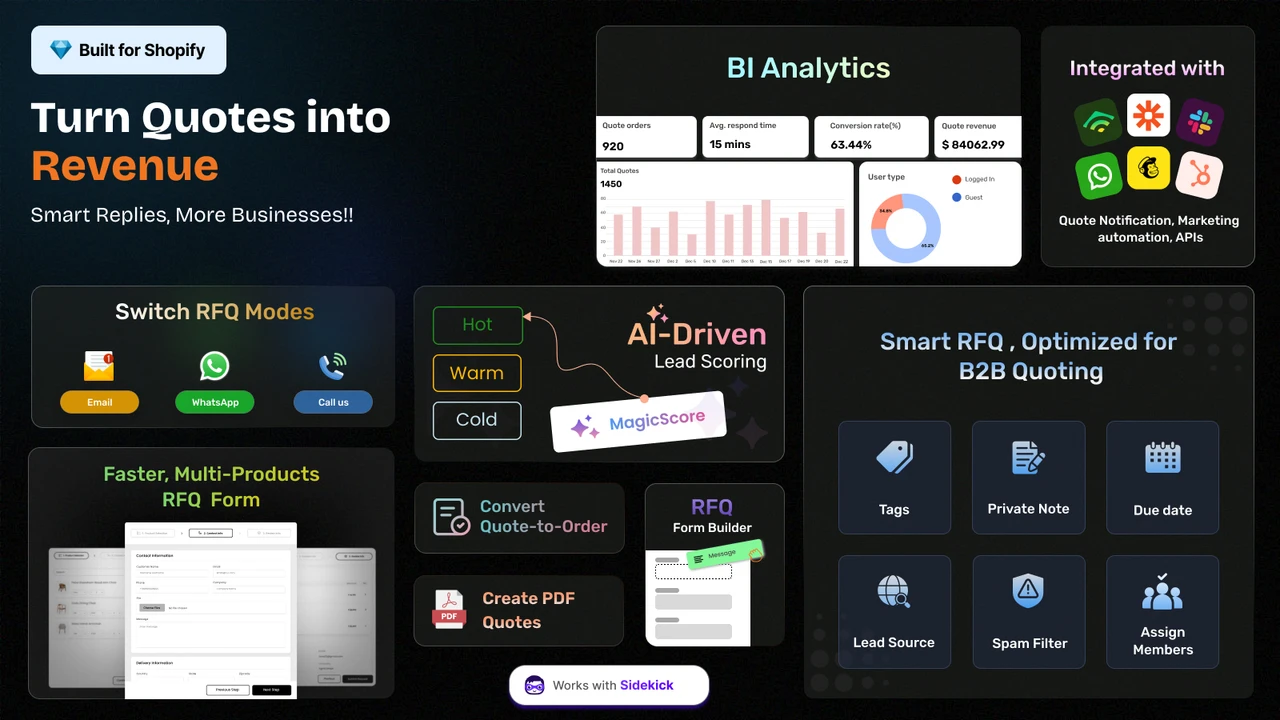
These steps use AI Request a Quote, Hide Price by SetuBridge: Built for Shopify, rated 4.7 from 195 reviews, with a free plan. The same steps work for most hide price apps.
- Install the app. Open the app’s page in the Shopify App Store, click Install, and approve the permissions. The free Lite plan covers 50 quote-enabled products.
- Turn on the app embed. In Shopify admin, go to Online Store → Themes → Customize → App embeds, and switch the app on. This is what lets it change your product pages without code.
- Choose where to hide prices. Pick all products, or limit it by collection, product tag or customer group.
- Choose who sees hidden prices. Hide prices from all visitors, from guests only, or from everyone except customers with a specific tag (for example, “wholesale”).
- Hide the Add to Cart button. Turn this on so shoppers can’t buy at the normal price. Leave it off if you only want to hide the number.
- Pick the replacement. Choose what shoppers see instead: a Call for Price button, a Request a Quote button, or a “Login to see price” message. The next two sections cover the first two.
- Save and test. Open a product page in a private browser window, so you see it as a guest, and check the price is hidden on both the product page and the collection page.
It takes about 5–10 minutes, and turning the rule off brings your prices back straight away.
How to add “Call for Price” on Shopify
A Call for Price button replaces the price with a direct way to contact you. It works best for single, high-value items where a quick conversation closes the sale.
- Set up a hide price rule for the products (steps above).
- Choose Call for Price as the replacement.
- Set the button text. Common options: “Call for Price”, “Price on Request”, “Contact for Price” or “Ask for Price”.
- Choose what the button does: open a short price inquiry form, start a phone call, or open email or WhatsApp. WhatsApp is on the paid plans.
- Match the button’s color and style to your theme, then save.
Tip: On mobile, a phone or WhatsApp button gets the fastest replies. On desktop, a short form works better, because shoppers can ask without leaving the page.
Call for Price or Request a Quote? Use Call for Price for one item and a quick answer. Use Request a Quote when buyers need several products, set quantities, or upload files such as drawings or logos.
How to add a Request a Quote button on Shopify
A Request a Quote button lets shoppers send you exactly what they want to buy (products, quantities, options and notes) so you can reply with a price. It’s the best fit for B2B, wholesale, bulk and custom orders.
- Set up a hide price rule (steps above), or skip it if you want to show the price and the quote button.
- Choose Request a Quote as the button.
- Pick a form style. A quick form suits one product; a multi-item form lets buyers add several products to one quote, like a cart.
- Build the form. Add the fields you need, such as company name, phone, quantity, delivery date or a file upload.
- Set up email notifications so you and the customer get a copy of each request.
- Save and send a test quote from a private browser window.
What happens after a customer asks for a quote:
- You get the request in the app, with the products, quantities and customer details.
- You reply with a price, either by email or as a branded PDF quote.
- When the customer accepts, you convert the quote into a draft order in one click and send them a payment link.
The Free plan covers quote requests by call or email. PDF quotes, WhatsApp and multi-language forms start on the Startup plan (7.99/month). Converting quotes to orders, AI lead scoring, and spam protection are on the Growth plan (12.99/month).
Hide prices for guests only, or only on some products
You don’t have to hide every price from everyone. These are the most common setups:
| Goal | Setting to use | Typical store |
|---|---|---|
| Show prices only after login | Hide for guests + “Login to see price” message | Wholesale-only stores |
| Show trade prices only to approved buyers | Hide for everyone except customers tagged “wholesale” | Mixed retail and B2B stores |
| Hide prices on custom products only | Hide by collection, such as “Custom orders” | Furniture, printing, signage |
| Hide prices on a few high-value items | Hide by product tag, such as “price-on-request” | Luxury, machinery |
| Show the price but also accept quotes | Don’t hide; add the Request a Quote button only | Stores offering bulk discounts |
Tip: Tag-based rules are the easiest to manage. Add or remove the tag on a product or customer, and the price shows or hides automatically, with no change to the app settings.
Common mistakes to avoid
- Hiding the price with no next step. Shoppers leave. Always show Call for Price, a quote button or a login link.
- Hiding it on the product page only. The price still shows on collection pages, search results and quick view. Test all of them.
- Leaving Add to Cart switched on. Shoppers can still buy at the regular price, or see it in the cart.
- Long quote forms. Ask only what you need to price the order. Each extra field means fewer requests.
- Slow replies. Buyers asking for a quote often ask several suppliers. Reply the same day, ideally within a few hours.
- Editing theme code without a backup. Duplicate your theme first, or use an app so a theme update doesn’t bring prices back.
Summary
To hide prices on Shopify, use a hide price app or edit your theme code; Shopify has no built-in setting for it. Always replace the price with a next step: Call for Price for quick, single-item questions, or a Request a Quote button for bulk, B2B and custom orders. Use collection, tag and customer rules so prices stay visible to the shoppers who should see them.
Try it free: AI Request a Quote, Hide Price hides prices and Add to Cart, adds Call for Price or a quote button, and has a free plan.
FAQs
Can you hide prices on Shopify without an app?
Yes, by editing your theme’s Liquid code to remove the price and Add to Cart button. It needs coding skills, can break on theme updates, and doesn’t add a Call for Price or quote button. An app does all of this without code.
Does Shopify have a built-in hide price setting?
No. Shopify B2B can show special prices to approved wholesale companies, but there’s no setting that hides prices from regular shoppers.
How do I show “Price on Request” on Shopify?
Use a hide price app and set the replacement button text to “Price on Request”. Link the button to a short inquiry form so shoppers can ask straight away.
Can I hide prices only for customers who aren’t logged in?
Yes. Set the hide price rule to guests only, and show a “Login to see price” message. Logged-in customers see prices as normal.
Can I hide prices for some products and show them for others?
Yes. Limit the rule to a collection or a product tag. Products outside the rule keep their normal price and Add to Cart button.
Will hiding prices affect my Google rankings?
It doesn’t affect normal search rankings. But Google Shopping ads and free product listings need a visible price that matches the product page, so products with hidden prices won’t show there.
What’s the difference between hiding prices and Request a Quote?
Hiding prices removes the price. Request a Quote adds a way for the shopper to ask for one. Most stores use both together.
Is there a free app to hide prices on Shopify?
Yes. AI Request a Quote, Hide Price has a free Lite plan that hides prices and the Add to Cart button and accepts quote requests by call or email for up to 50 products.
Related guides:
- How to Hide the Add to Cart Button on Your Shopify Store
- Top 5 Shopify Hide Price Apps
- Why Your Shopify Store Needs a Request Quote Feature
- How Pricing Quotes Boost Wholesale Orders on Shopify
Sources
- AI Request a Quote, Hide Price on the Shopify App Store: features, pricing, rating (checked 27 Oct 2026)
- Shopify: B2B for all: B2B on Basic, Grow and Advanced plans (April 2026)

Shopify Expert
Dipen Panchal, Shopify Tech Lead at Setubridge Technolabs, brings over a decade of expertise as a Shopify Expert. Passionate about e-commerce growth, he specializes in UI/UX design, crafting intuitive, engaging solutions tailored for merchants and B2B clients to enhance user experiences.