





A shopper finds the perfect engraved pendant for her mom’s birthday. She picks the metal, feels excited, and clicks Add to cart. Then she looks for a box to type the engraving. There is none, so she cannot share the special words. Frustrated, she leaves and buys it somewhere else.
This quiet loss happens on Shopify stores every single day. Shoppers who want custom text often have no place to enter it. When that box is missing, ready buyers simply walk away. Single-line and multi-line text personalization solves this exact problem. It captures each custom detail right on the product page.
This guide shows you how to add these text fields easily. You will learn what each field type does and why. You will also see two clear ways to set them up. We will cover best practices, AI tools, and common mistakes. Let us turn those custom ideas into completed, accurate orders.
Key Takeaways
- Shopify’s native variants cannot capture custom text on their own.
- Single-line fields fit names, dates, initials, and short engravings.
- Multi-line fields fit gift messages, poems, and longer notes.
- An app is the fastest, safest way to add text personalization.
- Custom code works but breaks with theme updates over time.
- Text personalization lifts conversions, AOV, and customer loyalty.
- AI tools add message ideas, moderation, and easy translation.
Why Shopify’s Native Options Fall Short for Text Personalization
Shopify handles variants like size, color, and material very well. These work for a shirt sold in three simple colors. But variants are fixed choices, not open text boxes. They cannot let a shopper type “To Sarah, with love.” This is where native product options quietly fall short.
Here is what Shopify cannot do with native options alone:
- Accept free-text input like names, dates, or messages.
- Set a character limit to match an engraving machine.
- Mark a text field as required before checkout.
- Show or hide a field based on other choices.
- Pass custom text cleanly through to the order.
Without these tools, many merchants email customers for details by hand. This causes delays, errors, and frustrated buyers on both sides. Shoppers now expect personal options as a normal part of shopping. In fact, 81% of consumers will pay extra for personalized clothing. Capturing text on the page is the clear fix.
The manual approach hurts more than most owners realize. Each back-and-forth email delays the order and tests patience. Some shoppers give up before they ever reply to you. Others send the wrong details, causing costly reprints later. A simple on-page field removes this whole painful loop.
What Are Single-Line and Multi-Line Text Fields?
Before you set things up, it helps to know each field type. Both collect custom text, but they serve different needs. Choosing the right one keeps your product page clean and clear. It also reduces order errors and shopper confusion. Let us look at each type in simple terms.
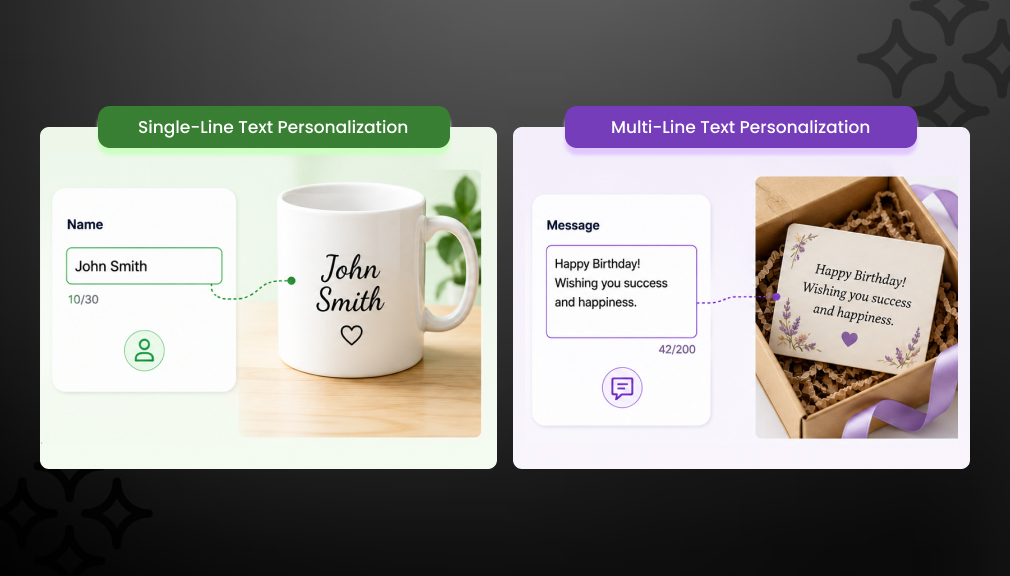
Single-line text fields: These show one short input row on the page. They suit small, specific inputs that fit on a single line. Think names, dates, initials, monograms, and short engravings. A bracelet name or a wallet monogram fits here perfectly. Character limits keep these inputs neat and print-ready.
Multi-line text fields: These expand into a larger box for longer text. They give shoppers room to write several lines at once. Gift messages, poems, vows, and dedications all fit well here. A heartfelt card note or an engraved plaque poem works great. The right field type shapes how smoothly shoppers order.
Many stores use both field types on one product page. A shopper might add a name plus a longer gift note. You can stack several fields to capture each detail clearly. Each field then holds one specific piece of their idea. This keeps the page organized and the order accurate.
How to Add Text Personalization on Shopify
There are two main ways to add these text fields today. You can use a Shopify personalization app built for this. Or you can add custom code inside your theme files. Below is an honest look at both clear options. Let us compare them so you can choose with confidence.
Option 1: Shopify App-Based Solution (Recommended)
A Product Personalizer app is the fastest, most reliable way to add text fields. It works without any coding or fragile theme edits. It also keeps working after theme updates and new products. This makes it the safe choice for most Shopify merchants. You can launch personalized products in just minutes.
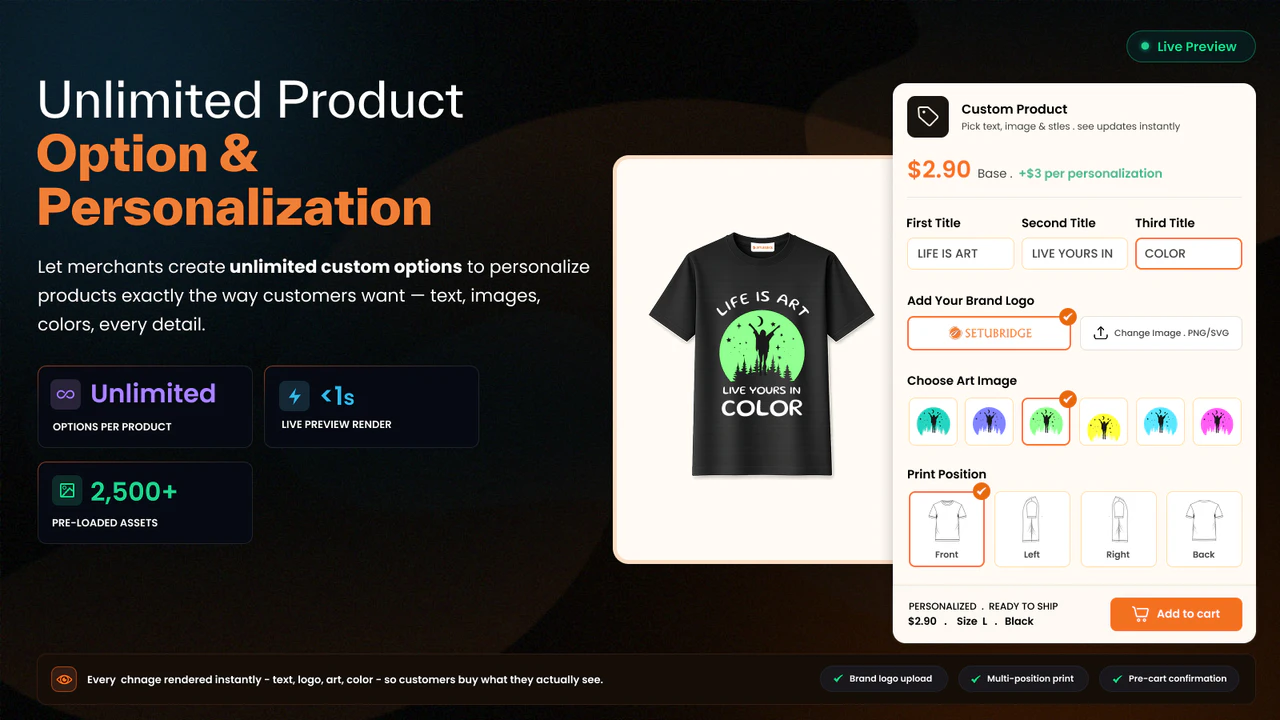
The Custom Product Personalizer app by SetuBridge makes Single-Line and Multi-Line Text Personalization on Shopify simple and flexible. It supports both single-line and multi-line text fields, allowing merchants to collect personalized customer input with ease. You can set character limits, make fields required, and apply conditional logic based on customer selections. All personalization data is automatically added to the order for smooth fulfillment. Plus, with multilingual support, it’s a great choice for Shopify stores serving customers around the world.
Here are the simple steps to set it up inside an app:
- Install a product personalization app from the Shopify App Store
- Open the app and create a new option set
- Add a single-line or multi-line text field to it
- Set a character limit and mark the field required if needed
- Add conditional rules, like a message box for gift wrap
- Assign the option set to your product or collection
- Save and test the text field on your live page
The whole setup usually takes under ten minutes to finish. No code means no developer and no ongoing theme risk. You can edit fields anytime as your product range grows. This flexibility keeps your store fast, safe, and simple. Most merchants find this path well worth the small fee.
Option 2: Custom Shopify Code Solution
You can also add a text field by editing your theme code. Developers use Liquid line item properties inside product templates. They add an input or textarea with a properties attribute. In theory, this captures the custom text you need. In practice, it brings real limits most merchants discover later.
Consider these drawbacks before choosing the custom code route:
- Theme dependency: A theme update can break your text field.
- No validation: Shoppers can skip the field without extra code.
- No character limit: Long text can overflow a short engraving.
- No conditional logic: Showing fields by choice needs heavy custom code.
- Developer needed: Every change means editing Liquid and JavaScript.
For most small and mid-size stores, code rarely pays off. It suits only large brands with developers on hand. For everyone else, an app is faster and far safer.
App vs. custom code at a glance:
- Setup time: Apps take minutes; code takes hours or days.
- Maintenance: Apps auto-update; code breaks on theme changes.
- Features: Apps add limits and logic; code needs custom work.
- Skill needed: Apps need no code; custom code needs a developer.
How Text Personalization Boosts Conversions and AOV
Text personalization is not just a nice touch for shoppers. It directly moves the numbers that matter to your store. When people add their own words, they feel a real bond. This is the endowment effect, and it drives more sales. A simple text box can lift your conversion rate fast.
Custom text also raises your average order value nicely. Shoppers pay a premium for products made just for them. Around 61% of shoppers say they will pay more for personalization. You can even add a small fee for engraving or messages. This turns one text field into a real revenue booster.
Clear text fields also cut cart abandonment on personalized items. The average cart abandonment rate sits near 70% today. Many buyers leave when they cannot enter their details. A simple, visible field removes that friction at checkout. Fewer barriers mean more completed, accurate orders overall.
Personalization also builds loyalty that keeps buyers coming back. After adding personalization, 47% of retailers reported higher sales overall. Shoppers return to stores that make them feel truly understood. A custom text field is a small step with big returns. It turns one thoughtful order into a lasting relationship.
How AI Is Making Text Personalization Smarter
Artificial intelligence is making text fields more helpful than ever. AI can suggest gift messages when a shopper feels stuck. It offers warm, ready-made lines they can tweak in seconds. This removes writer’s block and keeps the buyer moving. Smart help turns a blank box into an easy step.
AI also protects your store from risky or messy input. It can flag rude words or block unsafe text automatically. This keeps your products and brand safe from bad messages. AI can also translate text for shoppers in other languages. These tools make global personalization simple and worry-free.
Smart previews are another helpful gift from AI today. Shoppers can see their exact words shown on the product. The text updates live as they type each letter. This preview builds confidence and cuts ordering mistakes fast. Seeing the result makes buyers far more likely to check out.
You do not need to build these AI features yourself. Many personalization apps now include smart tools by default. Look for message suggestions, moderation, and live text previews. These features save shoppers time and reduce order mistakes. Smart tools make custom text feel effortless and fun.
Best Practices for Single-Line and Multi-Line Text Fields
A good field setup is only half of the whole job. How you design the field shapes your conversions too. A few smart habits make personalization clear and easy. Use these best practices to get the most real value. They keep your text fields clean, simple, and helpful.
Keep these tips in mind as you build your text fields:
- Use clear labels. Name the field, like “Engraving Text” or “Gift Message.”
- Add placeholder text. Show an example so shoppers know what to type.
- Show a character counter. Let buyers see how much space remains.
- Add a live preview. Let shoppers see their text on the product.
- Mark key fields required. Stop checkout until needed text is filled.
- Use conditional logic. Show a gift note only with gift wrapping.
- Optimize for mobile. Many shoppers type on small phone screens.
Character limits deserve special care for engraved products. Match the limit to your machine or printing space exactly. This stops long text from ruining the final product. A visible counter guides shoppers to the right length. Small guardrails here prevent costly reprints and returns.
Turn Text Fields Into Extra Revenue
A text field can do more than capture custom words. It can also add real profit to each personalized order. Many apps let you charge a small fee for engraving. Shoppers happily accept this, since custom text feels valuable. Around 59% of shoppers are more likely to buy with customization.
You can set a flat fee for a name or message. You can also charge per character for longer engravings. This add-on pricing lifts your average order value nicely. Buyers still feel the price is fair for a custom item. Small fees across many orders add up to real growth.
How Personalization Text Reaches Your Fulfillment Team
A great text field must do more than look tidy. It must also send each message to your team correctly. A good app attaches the text to the order as a line item property. Your team then sees the exact words on the order and packing slip. This clean handoff prevents guesswork and mistakes.
This smooth flow removes the need for follow-up emails. Shoppers rarely ask questions when their text is captured clearly. Fewer emails mean less support work and faster fulfillment. Accurate order data also lowers returns and reprints sharply. Good data turns personalization into a real business advantage.
The captured text can also print on packing slips directly. Your team or print partner reads it without extra steps. This matters most for stores with high order volume. Clean data keeps busy fulfillment moving quickly and correctly. It scales your personalization without adding daily manual work.
Best Use Cases for Text Personalization
Almost any store can gain from custom text fields. Still, some product types see especially strong results here. Knowing where it shines helps you plan your offers well. Here are the stores that benefit most from this feature.
- Engraved jewelry: Names, dates, and initials on rings or pendants.
- Personalized gifts: Mugs and keepsakes with names or short notes.
- Greeting cards and stationery: Long messages, poems, and dedications.
- Custom apparel: Names and numbers on shirts and jerseys.
- Wedding and events: Vows, monograms, and heartfelt custom text.
- Corporate gifts: Employee names and branded messages at scale.
Gifting and engraving stores win the most from text fields. Buyers there always need a place to share their words. If you sell these items, text personalization is a must. It helps you stand out and win thoughtful shoppers. The right setup can quickly pay for itself.
Common Mistakes to Avoid
Even good merchants make simple mistakes with text fields. Small errors here can quietly cost you real sales. Knowing these traps helps you sidestep them with ease. A little care upfront saves many headaches later on. Watch out for these common mistakes below.
- Hiding the text field low on the product page
- Skipping character limits, so engraving text overflows
- Forgetting to mark important fields as required
- Leaving no example, so shoppers feel unsure what to type
- Ignoring mobile buyers who type on small screens
Fixing these mistakes is usually quick and very rewarding. Keep the field visible, labeled, and easy to use. Set clear limits and add a helpful example early. Test the full flow on both desktop and phone. These small habits protect your sales and your brand.
Conclusion
Single-line and multi-line text personalization is no longer optional. Shoppers who want custom text are ready and eager to buy. Without a text box, those ready buyers quietly slip away. A simple field captures their words and secures the sale. For personalized-product stores, it is a real growth lever.
Most merchants get there fastest with a simple app. Setup takes minutes, needs no code, and survives theme updates. The app grows with you as your product range expands. Look at your product page now with fresh eyes. If shoppers cannot add their text, this is your next step.
FAQs
1. How do I add a text field to a Shopify product?
The easiest way is to install a Shopify product customization app like Custom Product Personalizer, create a text field option, and assign it to your product no code required. Alternatively, you can edit your product Liquid template to add a line item property input, but this requires developer knowledge and breaks with theme updates.
2. Can customers enter custom text on Shopify products?
Yes, but only if you add a text input field; Shopify does not include one by default. You can add it via a Shopify custom text field app or by manually editing your theme’s Liquid code to include an input or textarea element using Shopify’s line item properties.
3. How do I create a personalized product in Shopify?
To create a Shopify personalized product, you need to add a text input field to your product page that collects the customer’s custom content (name, message, date), then ensure that input passes into the order as a line item property so your fulfillment team can see it. A product personalization app handles all of this automatically.
4. What is the difference between single-line and multi-line text fields in Shopify?
Single-line text fields display a one-row input box suited for short inputs like names, dates, and initials. Multi-line text fields display an expandable text area for longer content like gift messages, poems, or dedications, typically anything requiring more than 50 characters.
5. How do I collect engraving text from customers on Shopify?
Add a Shopify engraving text field to your product page using a product options app. Set a character limit that matches your engraving machine’s maximum, mark the field as required, and ensure the text is passed as a line item property so it appears on every order and packing slip.
6. Which Shopify app is best for text personalization?
Custom Product Personalizer is purpose-built for Shopify merchants offering personalized products. It supports single-line and multi-line text fields, character limits, required field validation, conditional logic, and automatic line item property passing, making it one of the most complete solutions for Shopify text personalization.
7. How can customers add gift messages on Shopify?
You can enable Shopify gift message personalization by adding a multi-line text field to your product page or cart page using a customization app. Use conditional logic to show the field only when the customer selects a ‘Gift Wrapping’ option, so the experience feels intentional rather than cluttered.
8. Do I need a developer to add a text personalization field on Shopify?
No, with a product personalization app, you can add single-line and multi-line text fields in minutes without writing any code. The code-based approach (editing Liquid templates) does require developer access and introduces ongoing maintenance risk, especially when your theme is updated.

Shopify Expert
Dipen Panchal, Shopify Tech Lead at Setubridge Technolabs, brings over a decade of expertise as a Shopify Expert. Passionate about e-commerce growth, he specializes in UI/UX design, crafting intuitive, engaging solutions tailored for merchants and B2B clients to enhance user experiences.