





You provide same-day shipping. However, on your product page, all it states is “Ships in 1-3 business days.” That discrepancy is resulting in lost sales.
Customers don’t guess. They bounce. They open a rival’s tab. And they purchase there instead.
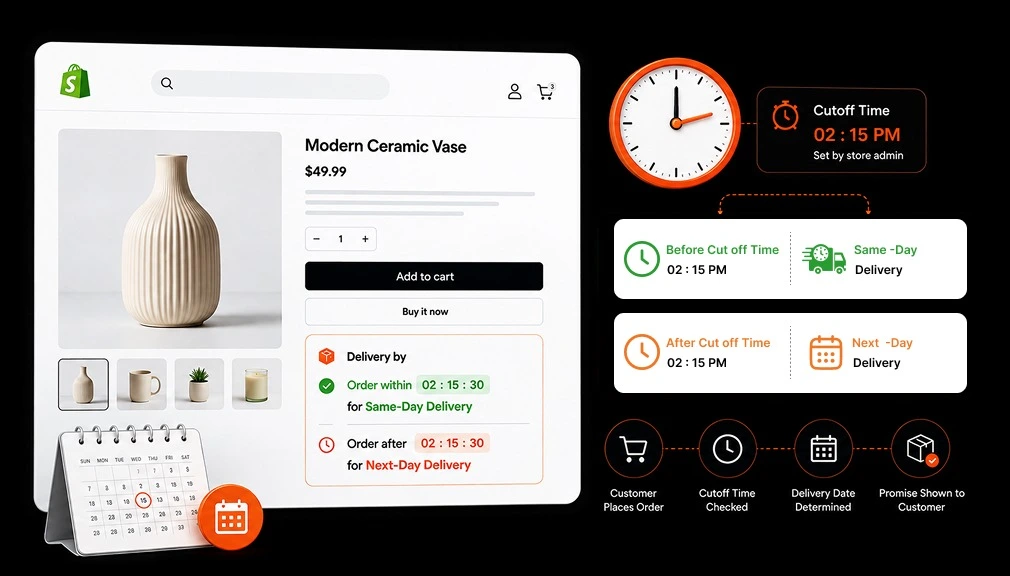
This is straightforward: if you’re before your cutoff time, show an “Order now delivered today” message, and if it’s past your cutoff time, show an “Order now delivered tomorrow” message. That’s the simple logic, but it’s the coding that stumps most store owners.
This guide provides step-by-step instructions for setting up your Shopify store to display same-day shipping before the cutoff time and overnight shipping after the cutoff time. It covers both a code-based implementation and a simpler, user-friendly approach using the Estimated Delivery Date – ETA app.
Key Takeaways
- Show “Delivered Today” before your cutoff, and auto-switch to “Delivered Tomorrow” after it.
- Cutoff-aware delivery messaging directly reduces cart abandonment and increases conversions.
- A code-based solution works but is fragile, hard to maintain, and has no timezone or ZIP code support.
- The Delivery Date app handles cutoff time logic, countdown timers, and ZIP-based dates without a single line of code.
- You can configure same-day vs. next-day rules per product, collection, or shipping zone.
- A live countdown timer (e.g., Order within 2h 14m) creates urgency and lifts average order value.
Why Cutoff-Based Delivery Messaging Matters
Delivery details are no longer a ‘nice to have’; they are a purchase trigger. When a shopper spots a precise, reliable delivery date, they know they can rely on you to provide what they want. When they spot an uncertain range or worse, nothing at all, they hold back.
| Recent research shows that delivery transparency is becoming more important than speed. Narvar’s 2025 State of Post-Purchase Report found that shoppers value accurate delivery estimates more than fast shipping because reliable delivery dates build trust and reduce purchase hesitation. Additionally, Capital One Shopping reports that 80% of consumers now expect retailers to offer same-day delivery, highlighting the growing demand for faster and more predictable fulfilment. |
Same day and next day are great… When people understand the rule. An explicit, direct instruction like “Order by 2:00 PM for same-day delivery” tells shoppers exactly what they need to know. It moves users to act, builds trust, and eliminates one question.
But expectation alone won’t finalise the sale. The delivery promise needs to be shown, corrected and updated automatically in real time based on the time of day. This is where most Shopify stores fail.
What Most Shopify Stores Get Wrong
Walk through any average Shopify store, and you will see one of two problems:
- A static delivery range that never changes: “Arrives in 2–5 business days.”
- No delivery information at all, forcing customers to dig through FAQs or contact support.
Neither of these builds the confidence a buyer needs to convert. Here is what the data says:
| 59% of shoppers have abandoned a purchase because the delivery options did not meet their needs. This rises to 73% among high-value shoppers, showing how strongly delivery speed and flexibility influence buying decisions. |
The fix isn’t really about displaying a date; it is about displaying the right date, in real time, as your customer is shopping. That involves cutoff time logic, which Shopify does not offer out of the box.
How Same-Day and Next-Day Cutoff Logic Should Work
Before diving into setup, understand the logic at play:
| Scenario | What to Display |
| Customer visits at 11:00 AM (cutoff = 2:00 PM) | ✅ Order now Delivered TODAY |
| Customer visits at 3:30 PM (cutoff = 2:00 PM) | 📦 Order now Delivered TOMORROW |
| Customer visits on Saturday (no weekend dispatch) | 📦 Order Monday Delivered Tuesday |
| Customer visits on a public holiday | 📦 Next dispatch: [Next working day] |
This logic should happen in real-time with no manual intervention required from your end. Each time a consumer arrives at a product page, the delivery message should be dynamically updated to always show the current time according to your dispatch rules.
Option 1: Code-Based Setup (and Why It Falls Short)
It is possible to build cutoff-based delivery messaging with custom Liquid and JavaScript in your Shopify theme.
Limitations of the Code-Based Setup
This script does the basics but falls apart fast in a real store environment. Here is why:
Code-Based Limitations
- Runs on the customer’s local browser time, not your store’s timezone. A customer in New York at 11 AM may see ‘delivered today’ while your UK warehouse has already closed.
- No holiday or blackout date support. You would need to hardcode every bank holiday.
- No ZIP code or postcode logic. You cannot show different delivery dates for different shipping zones.
- No per-product or per-variant rules. Every product shows the same date regardless of stock, location, or category.
- Requires a developer every time you need a change, cutoff adjustment, new holiday, or new rule.
- Not compatible with Online Store 2.0 themes without modification.
For a store running a handful of products with simple shipping, this can work short-term. But for any store with multiple shipping zones, variants, or seasonal rules, the code approach quickly becomes a maintenance headache and a source of inaccurate messages.
Option 2: App-Based Setup(Most Recommended)
The easiest way to display Same-Day Delivery Before Cutoff and Next-Day Delivery After Cutoff in Shopify is with the Estimated Delivery Date app. It automatically handles the complete delivery logic, including cutoff times, countdown timers, holiday blackouts, and ZIP-specific delivery dates, without requiring any theme code changes. This ensures customers always see accurate delivery estimates based on when they place their order, helping reduce confusion and increase purchase confidence.
| 68% of shoppers are more likely to shop online when same-day delivery is available. |
Step 1: Install the App
Go to the Shopify App Store and install the Delivery Date app. It is built for Shopify, works with all major themes, and takes under five minutes to activate.
- Open the Shopify App Store and search for “Delivery date app”
- Click Install and follow the steps.
- The app embeds automatically via Theme App Extension; no code editing needed.
Step 2: Set Your Cutoff Time
Once inside the app, go to the Delivery Rules section. Here you set your store’s order cutoff time, the moment after which same-day dispatch is no longer possible.
- Navigate to App → Delivery Rules → Order Cutoff Time.
- Set your cutoff hour in your store’s local timezone (for example, 2:00 PM).
- The app uses server-side time, not the browser, so the time is always accurate regardless of where your customer is located.
Step 3: Configure the Same-Day vs. Next-Day Delivery Message
This is where you define what delivery date customers will see before and after the cutoff time.
- Set your Cutoff Time and configure your Week Off days.
- Enter 0 in the Min Lead Days field.
- Enter 1 in the Max Lead Days field.
- Review your settings to ensure they match your delivery schedule.
- Click Save to apply the changes.
Once saved, customers visiting before the cutoff time will see a same-day delivery estimate, while those visiting after the cutoff time will see a next-day delivery estimate.
| Why This Works: A live countdown timer creates genuine, honest urgency, not artificial pressure.Shoppers who see a ticking clock make faster decisions. It answers ‘Should I order now or wait?’ by showing exactly what they have to gain by acting. |
Step 4: Assign Rules to Products or Collections
Not every product in your store ships the same way. The app lets you set different delivery date rules at the product, collection, or global level.
- Go to Delivery Rules → Conditions.
- Create a rule for “All Products” as a global default.
- Override specific products (e.g., bulky items, pre-orders, or dropshipped products) with their own rules.
- Assign different cutoff times per product category; for example, flowers cut off at 12:00 PM, electronics at 3:00 PM.
Step 5: Choose Where to Display the Delivery Message
The app lets you display your estimated delivery date on multiple pages, not just the product page.
- Product page: Primary placement, shown near the Add to Cart button.
- Collection page: Helps shoppers filter before they even click a product.
- Cart page: Reassures customers at the point of checkout commitment.
- Checkout page (Shopify Plus): Via the Checkout Extension for maximum trust at the final step.
- Order confirmation page: Sets post-purchase expectations and reduces support tickets.
| 80% of consumers expect retailers to offer same-day delivery, while 86% consider delivery within two days to be “fast delivery.“ This shows how important speedy shipping has become in ecommerce. |
Tips to Get the Most Out of Cutoff-Based Delivery Dates
- Set a realistic cutoff time, not aspirational. If your team stops packing at 1:30 PM, do not set the cutoff at 2:30 PM.
- Test both states of the widget: visit your product page before and after your cutoff to confirm the messages switch correctly.
- Use the countdown timer only for same-day; once the cutoff passes, switch to a calm next-day message. Urgency messaging after the cutoff has passed looks like a bug.
- Add at least 5–7 working-day blackout dates for public holidays in your primary shipping region to avoid inaccurate same-day promises.
- For multi-location stores, create separate delivery rules per warehouse or fulfilment centre.
- Pair your delivery date widget with a trust badge (e.g., “Free same-day delivery on orders over $50”) to maximise its conversion impact.
| 94% of customers make purchase decisions based on the delivery or collection options available. |
Final Thoughts
Providing Same-Day Delivery before cutoff and Next-Day after cutoff is one of the most high-leverage actions any Shopify merchant can take with regards to conversion rate, cart abandonment, and trust. It takes the abstract promise of shipping and makes it concrete and actionable for the shopper.
The code route at least provides a jumping-off point, but lacking timezone awareness, ZIP code support, holiday logic and a countdown timer, it will give rise to as many issues as it eliminates. For a production store, the app-based route is certainly the correct approach.
The Delivery Date app by itself offers everything you need: live, real-time cutoff switching, a countdown timer, rules at the individual-product level, ZIP and postcode support, and display on every kind of page. All without requiring any code.
Just set it up and then your product pages will begin to do the selling for you.
Frequently Asked Questions
Q: How does the app know the customer’s local time versus my store’s time?
A: The Estimated Delivery Date ‑ ETA app uses your store’s configured timezone (set in Shopify Admin → Settings → General), not the customer’s browser time. This ensures the cutoff logic is always based on your warehouse hours, not the shopper’s location.
Q: Can I set a different cutoff time for different products?
A: Yes. The app supports product-level and collection-level delivery rules. You can set a 12:00 PM cutoff for perishables and a 3:00 PM cutoff for general products, all managed from one dashboard.
Q: What happens to the same-day message on weekends?
A: If you mark Saturday and Sunday as non-dispatch days in the app’s working days settings, the app will automatically skip those days when calculating delivery and display the correct next available delivery date.
Q: Does the countdown timer refresh automatically?
A: Yes. The countdown timer in the app updates in real time on the customer’s screen. When it reaches zero, the display switches automatically to the next-day delivery message no page reload needed.
Q: Does this work with Shopify Online Store 2.0 themes?
A: Yes. The app installs via Shopify’s Theme App Extension, which is natively compatible with all Online Store 2.0 themes, including Dawn, Impulse, Prestige, and custom themes.
Q: Can I show different delivery dates for different ZIP codes or postcodes?
A: Yes. The app has a dedicated ZIP code/postcode delivery rule feature. You can assign specific cutoff times and delivery windows to individual ZIP codes, postal districts, or postcode prefixes.
Q: Is this possible without any coding knowledge?
A: Completely. The app is designed for merchants, not developers. Every rule, message, timer, and display location is configured through the app’s visual dashboard. No Liquid, no JavaScript, no theme editing required.
Q: Will the delivery date show on the cart and checkout pages too?
A: Yes. The app supports display on the product page, collection page, cart, checkout (Shopify Plus via Checkout Extension), and the order confirmation page.

Shopify Expert
Dipen Panchal, Shopify Tech Lead at Setubridge Technolabs, brings over a decade of expertise as a Shopify Expert. Passionate about e-commerce growth, he specializes in UI/UX design, crafting intuitive, engaging solutions tailored for merchants and B2B clients to enhance user experiences.