






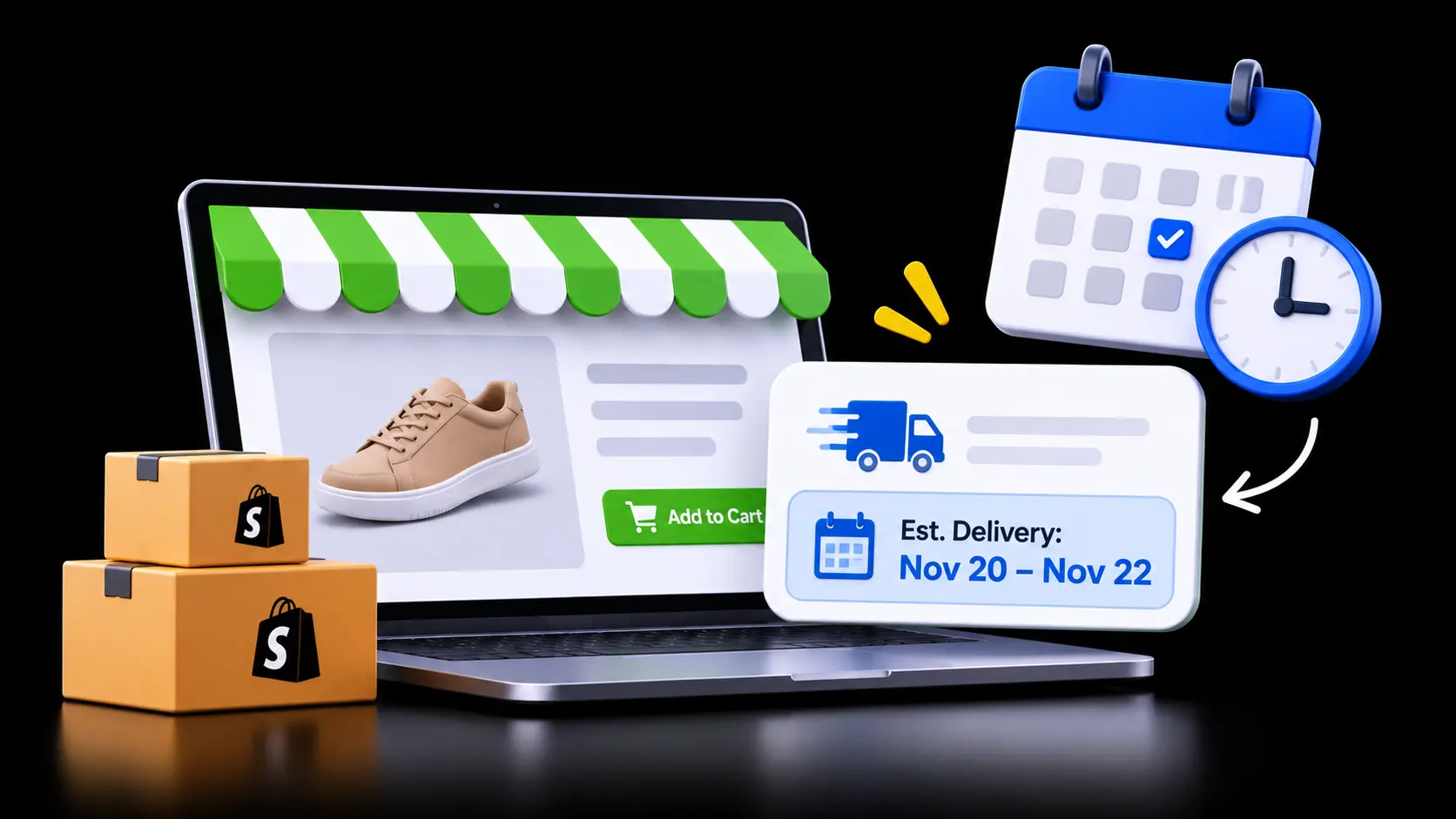
You check your Shopify dashboard on a Monday morning. You see 40 abandoned carts from the weekend. Your inbox has six new emails that all ask the same thing: “When will my order arrive?” That sinking feeling is real, and many store owners know it well.
Most of the time, the product and the price are fine. The shopper simply did not know when the package would show up. A clear line like “Get it by Thursday, Nov 20” answers that question before it is asked. This guide shows you how to add estimated delivery dates to the top 5 Shopify themes: Dawn, Horizon, Debut, Craft and Shrine PRO.
Key Takeaways
- An estimated delivery date tells shoppers when an order will arrive, right on the product page.
- Unclear delivery timing leads to abandoned carts and more “where is my order?” emails.
- Your theme type decides how you add the date: app block, theme block or code snippet.
- Dawn, Craft and Shrine PRO use app blocks. Horizon uses nested theme blocks. Debut needs a snippet.
- Set your processing time, cutoff time and holidays once, then reuse them across every theme.
- US accuracy depends on time zones, federal holidays, carrier schedules and peak-season buffers.
- Test variants, sold-out items, the cart drawer and mobile layout before you go live.
What Is an Estimated Delivery Date on Shopify?
An estimated delivery date (EDD) is the day or date range a shopper can expect their order. It appears before checkout, often under the price on the product page. It turns a vague promise into a clear plan. Shoppers can then decide with confidence instead of guessing.
Many merchants mix up a few related terms. Knowing the difference helps you show the right message in the right place.
| Term | What it means | When the shopper sees it |
| Processing time | Days you need to pack and hand off the order | Before purchase (often hidden) |
| Transit time | Days the carrier needs to deliver | Before purchase (often hidden) |
| Estimated delivery date | Order date + processing + transit, minus off days | Product page, cart, checkout |
| Delivery date picker | The shopper chooses a delivery day | Cart or checkout |
| Tracking ETA | The carrier’s live arrival estimate | After the order ships |
The math behind an EDD is simple. Start with the order time and check it against your daily cutoff. Add processing days, then add transit days. Skip weekends and holidays, and you have your delivery date or range.
Why Missing Delivery Dates Cost Shopify Merchants Sales
Shoppers rarely leave because they dislike your product. They often leave because something feels uncertain. Delivery timing is one of the biggest unknowns on a product page. If they cannot see it, many will not wait to find out.
The average documented cart abandonment rate is 70.22% across 50 studies, according to Baymard Institute. Among US shoppers who were not just browsing, 20% said they left because delivery was too slow (Baymard Institute). A clear date will not make shipping faster. It does help shoppers judge whether your timing works for them.
Unclear timing also creates work after the sale. Each “where is my order?” email takes time to read and answer. When shoppers see a date upfront, they know what to expect. That means fewer support tickets and calmer customers.
US shoppers also buy for deadlines. Think of birthdays, Mother’s Day, back to school and the holiday season. A delivery date answers their real question: “Will it arrive in time?”
Who Needs Estimated Delivery Dates Most?
Almost every store that ships physical products can use a delivery date. Some store types feel the pain more than others. Match your store type to the rule style that fits it best.
- In-stock DTC brands: use one store-wide processing and transit time.
- Print-on-demand and dropshipping stores: set longer ranges by product, vendor or tag.
- Handmade and made-to-order shops: add production days by product or collection.
- Multi-warehouse stores: set dates by shipping location.
- Gift, seasonal and perishable products: use a cutoff countdown and a holiday calendar.
- Stores with local pickup: show a “ready for pickup” date.
Digital-only stores and service businesses usually do not need a delivery date. Instant download or booking messages work better for them.
Does Shopify Show Delivery Dates on Its Own?
Shopify can show delivery dates at checkout when your shipping settings support it. Most themes do not show a delivery date on the product page by default. That is the spot where shoppers decide to buy. So the gap shows up early in the buying journey.
Shop Promise is one Shopify-native option for US stores. It is a trust badge for US domestic orders delivered in five calendar days or less (Easyship). Shopify sets these dates from your past fulfillment results. If your store does not qualify yet, or you need dates in more places, a theme-level setup fills the gap.
Why Your Shopify Theme Changes the Setup
Each theme is built a little differently. That structure decides how a delivery date gets onto your product page. Before you start, find out which group your theme belongs to. It saves hours of clicking around the theme editor.
- Vintage themes (Debut): these do not support app blocks in product sections. You add a small code snippet instead.
- Online Store 2.0 themes (Dawn, Craft, Shrine PRO): you drag an app block into the product section. No code is needed.
- Theme-block themes (Horizon): blocks sit inside nested groups. App block support arrived in Horizon version 2.0.0.
You will also see two words in the theme editor: app block and app embed. An app block is the visible widget you place on the page. An app embed loads the app’s script across your store. App embeds are turned off by default after you install an app (Shopify.dev), so switch them on first.
Here is a two-minute check for your theme. Go to Online Store, then Themes, then Customize. Open a product template and click Add block. If you see an Apps tab, your theme supports app blocks.
How Estimated Delivery Dates Fit the Top 5 Shopify Themes
The table below maps each theme to the setup path and the details merchants usually ask about. It uses Estimated Delivery Date ‑ ETA by SetuBridge as the example app for the workflow. You can use the same table as a checklist for any delivery date tool.
| Theme | Theme structure | How the delivery date is added | Best spot on the product page | First thing to test | Store fit |
| Dawn by Shopify | Online Store 2.0 | App embed + app block in Product information | Under the price, above Add to cart | Date changes when you switch variants | New and growing stores that want a clean, fast layout |
| Horizon by Shopify | Theme blocks (nested groups) | App embed + app block inside the buy-box group (v2.0.0+) | Same group as price and buy buttons | Block stays with the buttons on mobile | New stores; over 42,000 new active stores used the Horizon base theme (GemPages) |
| Debut by Shopify | Vintage | App embed + snippet in product-template.liquid | Under the price block in the code | Date shows on a duplicate theme first | Older stores that have not moved to Online Store 2.0 yet |
| Craft by Shopify | Online Store 2.0 | App embed + app block in Product information | Under the variant picker, above buy buttons | Made-to-order items show longer dates | Makers and artisan brands with story-led pages |
| Shrine PRO by Shrine Solutions | Online Store 2.0 | App embed + app block in the product info area | Near price, apart from built-in urgency blocks | Only one date and one timer show | High-volume stores; Shrine PRO runs on 54,360 stores (StoreCensus) |
Set Your Delivery Rules Once, Then Use Them on Any Theme
The hardest part is not placing the widget. It is getting the date right for every order. If you set your rules well once, every theme shows the same accurate date. Think of this step as writing down how your store really ships.
In this workflow, Estimated Delivery Date ‑ ETA by SetuBridge does the date math for you. It shows dates on product pages, collection pages, the cart, checkout, order emails and pickup locations. The app holds a 4.8 rating from 520 reviews on the Shopify App Store. A free plan covers up to 100 ETA views, and paid plans add unlimited views and more rules.
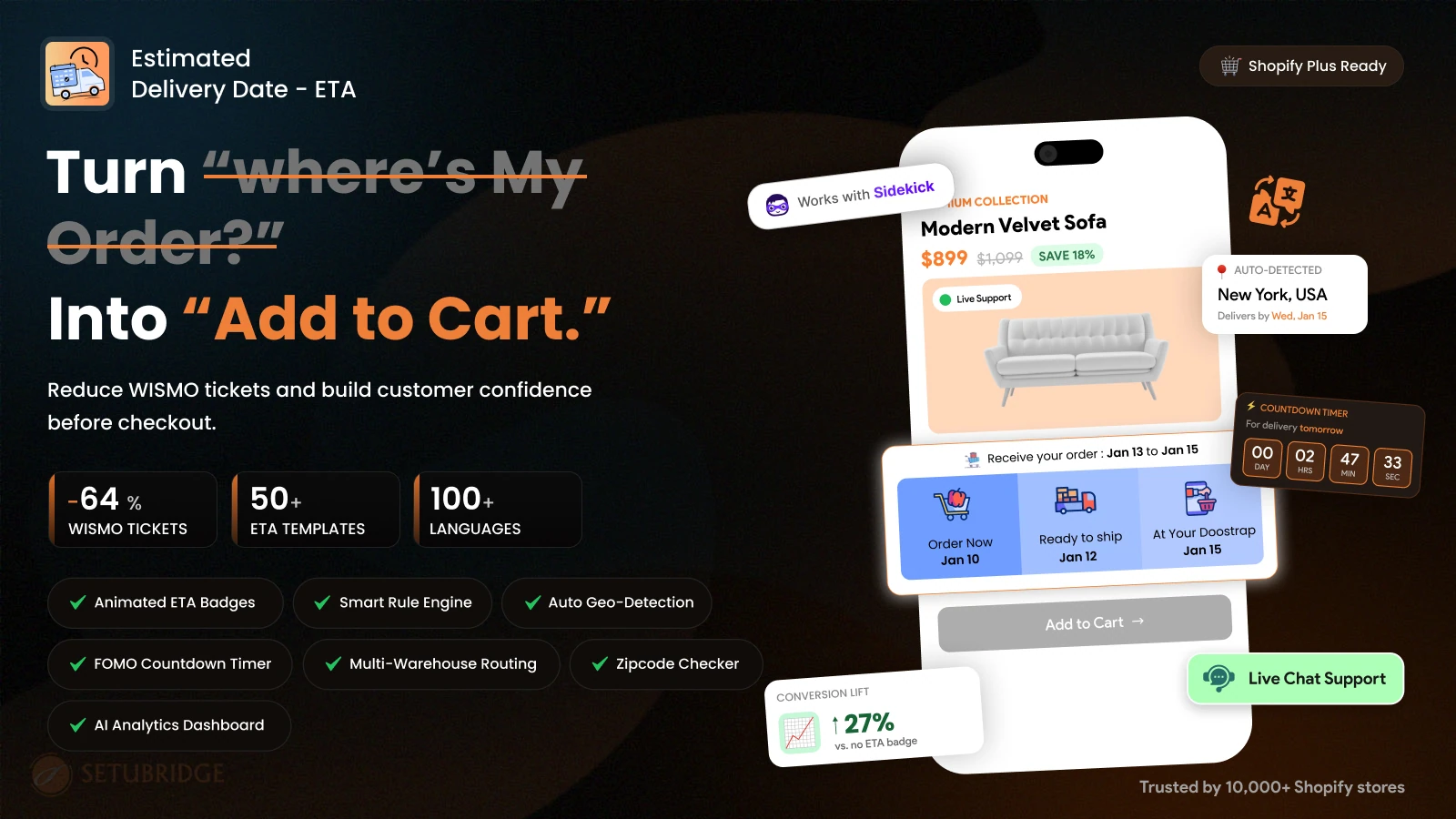
Work through these settings in order:
- Processing time: how many business days you need to pack and ship.
- Daily cutoff time: the last order time that still ships today, in your store’s time zone.
- Non-shipping days: weekends and any days your team does not ship.
- Holidays: US federal holidays and your own vacation dates.
- Transit time: store-wide, or by country, state or ZIP code.
- Product rules: longer dates for certain products, collections, tags, vendors or out-of-stock items.
- Message and style: short, clear wording such as “Get it by {date}” in your brand colors.
- App embed: turn it on in the theme editor and save.
Write your message for a busy shopper. “Order in the next 2h 14m, get it by Thu, Nov 20” works well. It gives a deadline, a date and a reason to act now. Keep it to one line on mobile if you can.
How to Add Estimated Delivery Dates to Each Shopify Theme
Jump to your theme below. Each section covers the problem merchants face, the short setup path and what to check. Always work on a duplicate theme first. Publish only after the date looks right.
1 – Dawn
Dawn is Shopify’s reference Online Store 2.0 theme, and many stores start on it. A common Dawn problem is a delivery date that shows on sold-out variants. Shoppers then expect an item you cannot ship yet. Another is old custom code that stopped working after a theme switch.
Setup path:
- Customize, then pick Products and Default product from the top menu.
- In Product information, click Add block, open Apps and choose the delivery date block.
- Drag it under the price and save.
Repeat this for each product template you use, such as a pre-order template. Quick-view pop-ups and the cart drawer do not use the product template, so check them on their own. Use a stock-status rule so sold-out variants show a different message. Remove any old date code so shoppers never see two dates.
2 – Horizon
Horizon is Shopify’s newer theme family, built on theme blocks. Merchants often cannot find where the block should go. Blocks sit inside groups, and the right group may be a few clicks deep. Some also miss the Apps tab because they run an older version.
Setup path:
- Check your Horizon version in the theme library and update to 2.0.0 or later.
- Open the product template and expand the product information section.
- Find the group that holds the price and buy buttons, click Add block, then Apps.
- Add the delivery date block inside that group and save.
Keeping the block inside the buy-box group keeps it next to the buttons on mobile. Switch between variants in preview to confirm the date refreshes. Use an app block rather than an AI-generated text block for dates. A text block stays static, while an app block updates with your cutoff and holiday rules.
3 – Debut
Debut is a vintage theme that still runs many established stores. The main pain point is simple: there is no Apps tab in the product section. Merchants search the editor and find nothing to drag in. The fix is a small code snippet.
Setup path:
- Duplicate your theme and turn on the app embed.
- Ask the app’s support team for the vintage theme snippet.
- Go to Edit code, open Sections, then product-template.liquid.
- Paste the snippet just below the price and save.
Preview a few products before you publish the copy. Note the change in a simple log so you can redo it after a theme switch. If you plan to move to Dawn or another Online Store 2.0 theme, the app block path will replace this snippet.
4 – Craft
Craft is a free Online Store 2.0 theme made for makers and artisan brands. Its pages tell long product stories with large images. The delivery date can get lost below the fold or inside a tab. Made-to-order items also need longer dates than in-stock items.
Setup path:
- Open the product template and select Product information.
- Click Add block, open Apps and add the delivery date block.
- Place it under the variant picker and above the buy buttons, then save.
Add production days with product or collection rules for made-to-order pieces. Avoid placing the date inside collapsible tabs, where many shoppers never click. Craft stores often sell from browsing pages too. Showing dates on the collection grid helps those shoppers decide faster.
5 – Shrine PRO
Shrine PRO is a premium third-party theme from Shrine Solutions, sold on its own site. It comes with many built-in sales features, such as urgency blocks and a feature-rich cart drawer. With so many tools on one page, merchants sometimes show two timers or two dates. That mix can confuse shoppers at the moment they decide.
Setup path:
- Turn on the app embed in the theme editor.
- Open the product template and the product info area.
- Click Add block, open Apps and add the delivery date block near the price.
- Save and preview on mobile and desktop.
Pick one source for your delivery date and countdown. If your theme version has its own delivery or countdown block, keep just one turned on. Check the cart drawer, since upsells and bundles can move the message lower. Shrine updates its own theme, so retest your product page after each update.
Make Your Delivery Dates Accurate for US Shoppers
A wrong date hurts trust more than no date at all. US shipping has a few quirks that catch many merchants off guard. Plan for them once, and your dates stay reliable all year.
- Time zones: set the cutoff in your warehouse’s time zone and say so, such as “Order by 2 p.m. ET.”
- Federal holidays: USPS does not deliver on federal holidays, so add them to your calendar.
- Carrier schedules: USPS delivers on Saturdays, while UPS and FedEx weekend service depends on the service level.
- Long-distance zones: Alaska, Hawaii, Puerto Rico and APO/FPO addresses need extra transit days.
- Peak season: add buffer days from Black Friday through December and share a last order date for Christmas.
- Supplier lead times: print-on-demand and dropship items need their own production days.
- Ranges when unsure: a range like “Nov 20–24” is safer than a single day you might miss.
US law also matters here. The FTC’s Mail, Internet, or Telephone Order Merchandise Rule asks sellers to have a reasonable basis for shipping claims. Base your dates on how you really ship, not on your best week. This is general information, so check with a legal advisor for your store.
Quick Fixes for Common Delivery Date Problems
Most delivery date issues come from settings or placement, not the tool itself. Use this table to spot the cause and fix it fast.
| What you see | Likely cause | Quick fix |
| No Apps tab in the editor | Vintage theme or older Horizon version | Update Horizon or use a snippet on Debut |
| Block added, but no date shows | App embed is off or no rule matches | Turn on the embed and review your rules |
| Date is off by one day | Store time zone or cutoff not set | Set the time zone and cutoff in the app |
| Two dates on one page | Theme feature and app both active, or old code | Keep one source and remove the other |
| Date stays the same across variants | Variant-specific rules not set yet | Add product or stock rules and contact app support with your theme version |
| Date missing in the cart drawer | Cart display not turned on | Turn on cart display in the app settings |
| Date shows on sold-out items | No stock-status rule | Add an out-of-stock rule or message |
App support teams can help with theme-specific placement. Share your theme name, version and a product link when you reach out. That speeds up the fix for everyone.
Test Before You Go Live: A 10-Point Checklist
Testing takes about 15 minutes, and it protects every sale after launch. Run this list on your duplicate theme. Then run it again after you publish.
- The date shows on desktop and mobile.
- The date updates when you switch variants.
- Sold-out variants show the right message.
- The date is correct one minute before and after your cutoff.
- Friday evening orders skip the weekend.
- The next holiday is skipped.
- State or ZIP rules return the right date.
- The cart, cart drawer and order email show the same date.
- The page does not jump while the date loads.
- The text is easy to read, with strong color contrast.
How to Tell If Your Delivery Dates Are Working
Track a few numbers for 30 days before and 30 days after launch. Avoid comparing a holiday week with a normal week. Keep the test simple so the results are easy to read.
- Add-to-cart rate: found in Shopify Analytics.
- Conversion rate: also in Shopify Analytics.
- “Where is my order?” tickets: count them in your help desk or inbox.
- On-time delivery: compare promised dates with actual delivery dates.
Review your processing and transit settings every quarter. Carriers change their speeds, and your team may get faster. Small updates keep your dates honest and your shoppers happy.
Conclusion: Give Every Shopper a Date They Can Trust
Shoppers want to know one simple thing before they buy: when will it arrive? Adding estimated delivery dates to your Shopify theme answers that question at the right moment. Start by checking your theme type, then set your delivery rules once. Place the block where shoppers decide, test it and track the results.
Dawn, Craft and Shrine PRO use app blocks, Horizon uses theme blocks, and Debut uses a snippet. The steps differ, but the goal stays the same. Show an accurate date, keep it the same everywhere, and update it as your shipping changes. Your shoppers will feel more confident, and your inbox will get a little quieter.
FAQs
Does Shopify show estimated delivery dates automatically?
Shopify can show delivery dates at checkout when your shipping settings support it. Most themes do not show them on the product page by default. An app block or snippet adds them there.
How do I add an estimated delivery date to the Dawn theme without code?
Install a delivery date app and turn on its app embed. Then add its app block to Product information in the theme editor. Place it under the price and save.
Why can’t I find the app block in my Shopify theme?
Your theme may be a vintage theme like Debut, which does not support app blocks. On Horizon, you may need version 2.0.0 or later. Also check that the app embed is turned on.
Can I add a delivery date to a vintage theme like Debut?
Yes. Turn on the app embed and paste a small snippet into product-template.liquid. Ask the app’s support team for the right snippet.
Can I show different delivery dates by product or ZIP code?
Yes. Most delivery date apps support rules by product, collection, tag or stock status. Location rules by state or ZIP code are often part of paid plans.
Should I show a single delivery date or a date range?
Show a single date when your shipping is fast and steady. Use a range when carriers or suppliers vary. A range you meet builds more trust than a date you miss.

Shopify Expert
Dipen Panchal, Shopify Tech Lead at Setubridge Technolabs, brings over a decade of expertise as a Shopify Expert. Passionate about e-commerce growth, he specializes in UI/UX design, crafting intuitive, engaging solutions tailored for merchants and B2B clients to enhance user experiences.